
Problem : The root of the certificate chain is not a trusted root authority.
Event Log Error
An operation failed because the following certificate has validation errors:\n\nSubject Name: CN=<Certificate URL>, OU=Domain Control Validated, O=<Certificate URL>\nIssuer Name: SERIALNUMBER=07969287, CN=Go Daddy Secure Certification Authority, OU=http://certificates.godaddy.com/repository, O="GoDaddy.com, Inc.", L=Scottsdale, S=Arizona, C=US\nThumbprint: xxxxxxxxxxxxxxxxxxxxxx\n\nErrors:\n\n The root of the certificate chain is not a trusted root authority.
Main problem is your SSO Application unable to make a trust with SharePoint 2010 Site.
Common mistake:Most of developer while implementing the SSL on SharePoint Site they only include the main Certificate to SharePoint Security "Manage Trust" i.e. (<Site URL>). SharePoint Site unable to make the trust between the SSO Site.
Solution : You need to first see the hierarchy of the certificate. How to check the hierarchy of the certificate. It is very simple.
Open the site in the browser. here in the example i opened the Google.com in Google Chrome browser.
Follow the steps.
1. Click the Certification Information.
3. Next step you need to download the all three certificate and give them a name as "RootCert", "Intermediate Certs", "PassiveSigninSTS" (Main Certificate).
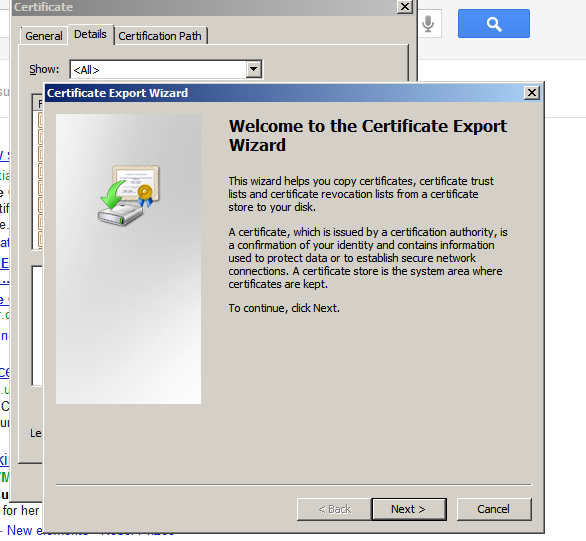
4. Click on the Details tab and click copy to file you see the following screen. Click next.
 5. Save the each Certificate with " DER Encoded binary x.509(.CER)." format and download it on your disk.

6. All three certificate you need to add to your SharePoint Administrator Under Security "Manage Trust" Section.
 7. You can see the RootCert, Intermediate Certs, PassiveSigninSTS certificate.
Event Log Error
An operation failed because the following certificate has validation errors:\n\nSubject Name: CN=<Certificate URL>, OU=Domain Control Validated, O=<Certificate URL>\nIssuer Name: SERIALNUMBER=07969287, CN=Go Daddy Secure Certification Authority, OU=http://certificates.godaddy.com/repository, O="GoDaddy.com, Inc.", L=Scottsdale, S=Arizona, C=US\nThumbprint: xxxxxxxxxxxxxxxxxxxxxx\n\nErrors:\n\n The root of the certificate chain is not a trusted root authority.
Main problem is your SSO Application unable to make a trust with SharePoint 2010 Site.
Common mistake:Most of developer while implementing the SSL on SharePoint Site they only include the main Certificate to SharePoint Security "Manage Trust" i.e. (<Site URL>
Solution : You need to first see the hierarchy of the certificate. How to check the hierarchy of the certificate. It is very simple.
Follow the steps.
1. Click the Certification Information.

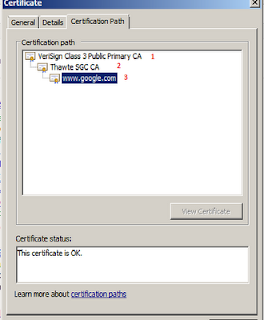
2. Click on the Certification Path. You can see the hierarchy of the certificate here you can see the 1, 2, 3 marked as red.

3. Next step you need to download the all three certificate and give them a name as "RootCert", "Intermediate Certs", "PassiveSigninSTS" (Main Certificate).
4. Click on the Details tab and click copy to file you see the following screen. Click next.

6. All three certificate you need to add to your SharePoint Administrator Under Security "Manage Trust" Section.


8 . Above image "local" is default certificate. To add the ce
rtificate just need to click the new and give a name to certificate and specify the location of your disk and leave the default settings press OK.
Thanks for that :)
ReplyDeleteYour welcome :)
ReplyDeletethank you. solved my problem
ReplyDelete