
Search box Sends Queries to more then one Control(Search Result & Content Search web part)

Question: If you have multiple result web part or combination of search result & content search web part on search result page. The result would be filtered on the basis of the search term and then would be the changes required to modify the search results. 

Answer to this Question: First need to identified the number of webparts that takes the input from search box on the basis of our requirement. 

Following are the steps that need to get the desired results.

1. Edit Search box web part under "Which Search results Page" Section. The list of search related web part displayed here as per the below image. Only two type of web part will be display here first "Search Result" and "Content Search Web Part".
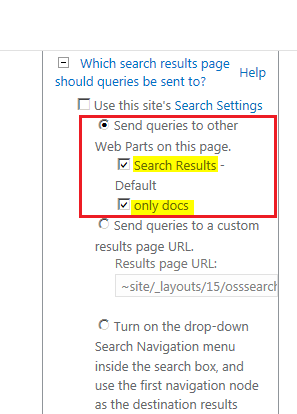


2. Save the Settings to Click Ok & Save the Web part settings.
3. Change the web part query to get the desired results for each web parts.


Comments

Popular posts from this blog

SharePoint RPC Protocols Examples Using OWSSVR.DLL

What is SharePoint RPC Protocols? Part 1 This reference includes information about the methods and usage of SharePoint Foundation Remote Procedure Call (RPC) protocol. This protocol can be used in Win32-based applications or in ASPX applications to make HTTP POST requests to the server. Methods in this protocol that do not modify the contents of the database can also be used in URL protocol to make HTTP GET requests. Definition taken from http://msdn.microsoft.com/en-us/library/ms448359.aspx You will find the OWSSVR.DLL in SharePoint 2010 Server Physical Path: C:\Program Files\Common Files\Microsoft Shared\Web Server Extensions\14\ISAPI and MOSS C:\Program Files\Common Files\Microsoft Shared\Web Server Extensions\12\ISAPI OWSSVR.DLL List of commands DialogView  Display ExportList GetProjSchema GetUsageBlob HitCounter RenderView To read more about the OWSSVR.DLL command Please read the URL Protocol from Microsoft Blog having a URL http://msdn.microsoft.com/en...

SharePoint 2013 Search Database Part 1

SharePoint 2013 Search architecture drastically change, as earlier in FS4SP 2010 we have 2 search applications “FASTContentSSA” and “FASTQuerySSA” and 7 total database in use. Following are the List of DB (FS4SP) FASTContentSSA Search Service Application DB Search Service Application Crawl Store DB Search Service Application Property Store DB FASTQuerySSA Search Service Application DB Search Service Application Crawl Store DB Search Service Application Property Store DB FASTSearchAdminDatabase : Fast Search Admin Database  In SharePoint 2013 search has only 1 Search Service application and 4 database in use. No property store database need any more, now the properties are directly stored inside the index component and all the index directly indexed to the physical system where FS4SP data comes from database as well as from the File system now data directly stored and indexed/ retried from the Physical disk because of this performance increase and search experien...

STS CryptographicException Error : Key set does not exist

Common mistakes Both SharePoint Site and SSO Site NOT running on the same application pool. Application pool identity user doesn’t have permission to access the certification.  Solution to this problem Set the same identity pool to  : 2. Be sure to grant rights to the certificate for the App Pool running the web service Start -> Run -> MMC File -> Add/Remove Snapin Add the Certificates Snap In Select Computer Account, then hit next Select Local Computer (the default), then click Finish On the left panel from Console Root, navigate to Certificates (Local Computer) -> Personal -> Certificates You're certificate will most likely be here. Right click on your certificate -> All Tasks -> Manage Private Keys Set you're private key settings here. Add app pool account Reset iis