SharePoint 2013 Result Source

Result Source: SharePoint 2013 comes with Result Source, "which is a replacement of SharePoint Scopes and federation locations".

Apply query to transform a corpus subset. In SharePoint 2010, the scopes only are created at the application level to overcome this problem. Result source can be created at Application Level, Site Collection Level and Site Level. Now the every site owner can creates the result source at Application, site collection and site.

Site Level


Site Collection Level

Application Level


So site collection result source available to all the sub site, and site can have its own result source. Once it created user create the new Search Vertical and update the core result web part.

Following are the steps to create the Result Source.
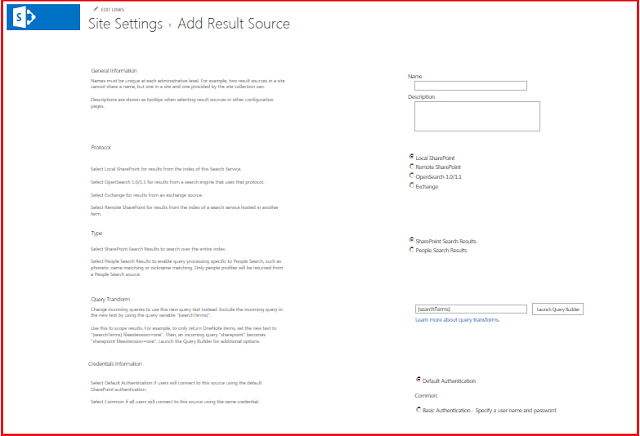
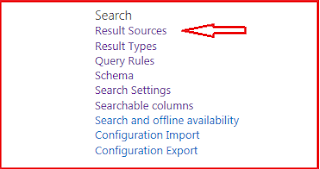
  • Go to the settings -> Site Settings -> Under Search -> Click to the Result Source -> Click to Add Result Source

  • You need to give the name of the Result Source
  • In Protocol section -> Select Local SharePoint Search
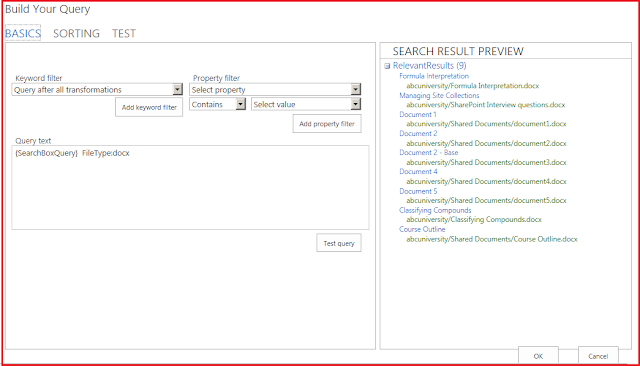
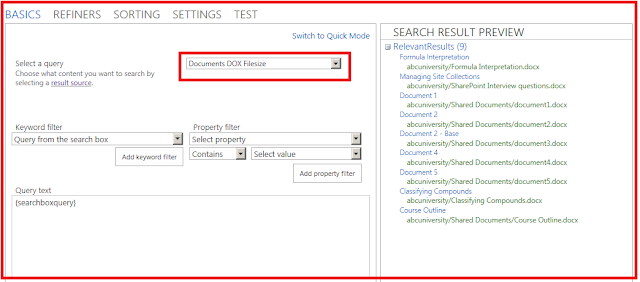
  • Click "Lunch query builder" button, the below image will display. 
  • The query builder helps to generate the query. 


  • Select the keyword filter to add keyword and property filter display the list of manage Property click "Add Keywords Filter/Add Property Filter" to add the filter to your search query. To test the query click test query button the preview window display the search result. There are two tabs one for sorting to sort your search result and other tab display the test tab to run execute the query. After create the query click [OK].
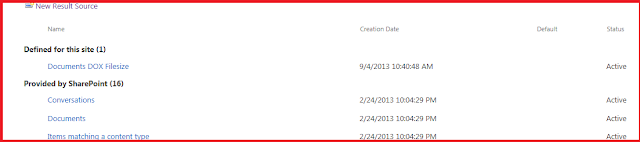
  • Select authentication and click [OK], the Result source created. The below "Document DOX FileSize" is the name of the Result source, that I just created. 


  • Above Image display the two result fist default provided by the SharePoint and second Result source at site level.
  • Now the Result source is created, next step to create the new page. 
  • I have created the new page from the Setting->Click "Add New Page" option. Page is created having a name "DocOnly"
  • Next Step, Need to update the Search result web part.
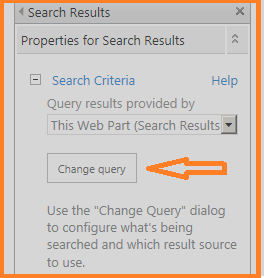
  • Edict Search result web part. Click "Search Criteria" node, click "Change Query" button. Query builder open in Popup window. 

  • Select the Result Source that we created at the top, name of the result source "Document DOX FileSize".
  • Click [OK], to apply the setting to the Web part, publish the page, Now the expected search will display. 
  • Next step we need to create the "Search Vertical".
  • Click to the setting->Site Settings -> under search tab click Search Settings.
  • Under configure Search Navigation section, added new Search vertical, called "Onlydocs".
  • Click [OK] to save the search configuration. 
  • Result source configured successfully.

Comments

Popular posts from this blog

SharePoint RPC Protocols Examples Using OWSSVR.DLL

What is SharePoint RPC Protocols? Part 1 This reference includes information about the methods and usage of SharePoint Foundation Remote Procedure Call (RPC) protocol. This protocol can be used in Win32-based applications or in ASPX applications to make HTTP POST requests to the server. Methods in this protocol that do not modify the contents of the database can also be used in URL protocol to make HTTP GET requests. Definition taken from http://msdn.microsoft.com/en-us/library/ms448359.aspx You will find the OWSSVR.DLL in SharePoint 2010 Server Physical Path: C:\Program Files\Common Files\Microsoft Shared\Web Server Extensions\14\ISAPI and MOSS C:\Program Files\Common Files\Microsoft Shared\Web Server Extensions\12\ISAPI OWSSVR.DLL List of commands DialogView  Display ExportList GetProjSchema GetUsageBlob HitCounter RenderView To read more about the OWSSVR.DLL command Please read the URL Protocol from Microsoft Blog having a URL http://msdn.microsoft.com/en...

SharePoint 2013 Search Database Part 1

SharePoint 2013 Search architecture drastically change, as earlier in FS4SP 2010 we have 2 search applications “FASTContentSSA” and “FASTQuerySSA” and 7 total database in use. Following are the List of DB (FS4SP) FASTContentSSA Search Service Application DB Search Service Application Crawl Store DB Search Service Application Property Store DB FASTQuerySSA Search Service Application DB Search Service Application Crawl Store DB Search Service Application Property Store DB FASTSearchAdminDatabase : Fast Search Admin Database  In SharePoint 2013 search has only 1 Search Service application and 4 database in use. No property store database need any more, now the properties are directly stored inside the index component and all the index directly indexed to the physical system where FS4SP data comes from database as well as from the File system now data directly stored and indexed/ retried from the Physical disk because of this performance increase and search experien...

STS CryptographicException Error : Key set does not exist

Common mistakes Both SharePoint Site and SSO Site NOT running on the same application pool. Application pool identity user doesn’t have permission to access the certification.  Solution to this problem Set the same identity pool to  : 2. Be sure to grant rights to the certificate for the App Pool running the web service Start -> Run -> MMC File -> Add/Remove Snapin Add the Certificates Snap In Select Computer Account, then hit next Select Local Computer (the default), then click Finish On the left panel from Console Root, navigate to Certificates (Local Computer) -> Personal -> Certificates You're certificate will most likely be here. Right click on your certificate -> All Tasks -> Manage Private Keys Set you're private key settings here. Add app pool account Reset iis